
Place an order
Find a restaurant, choose your dishes and fill your cart.
You can browse every menu without signing in. You need an account only when you place the order.
1. Find a restaurant
- Go to ssgo.ca.
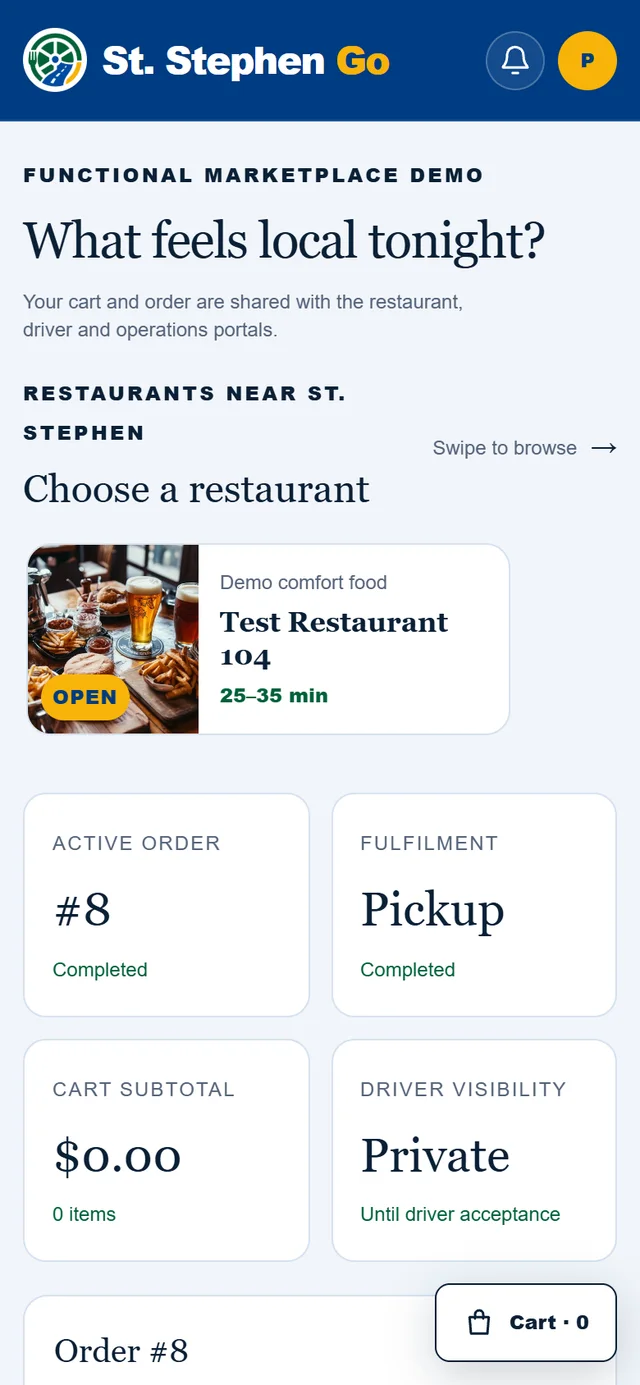
- Type your delivery address in Enter your delivery address and pick it from the suggestions, then tap Explore local menus. For pickup, you can skip the address.
- Under Choose a restaurant, tap a restaurant's card.
Open restaurants are listed first. Once the site knows your address, they are sorted by distance from you. A card marked OPEN is taking orders now.
2. Choose your dishes
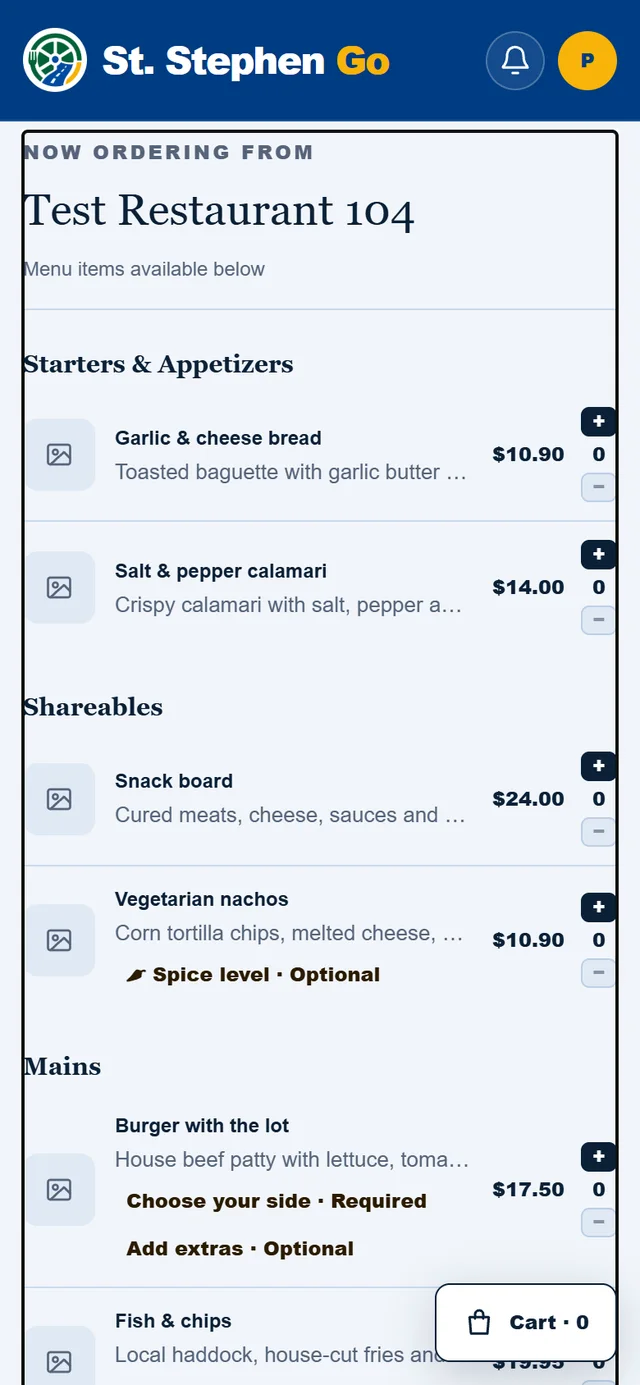
- Tap + beside a dish to add it. Tap − to take one away.
- Tap the dish itself to see its photo, description and dietary labels.
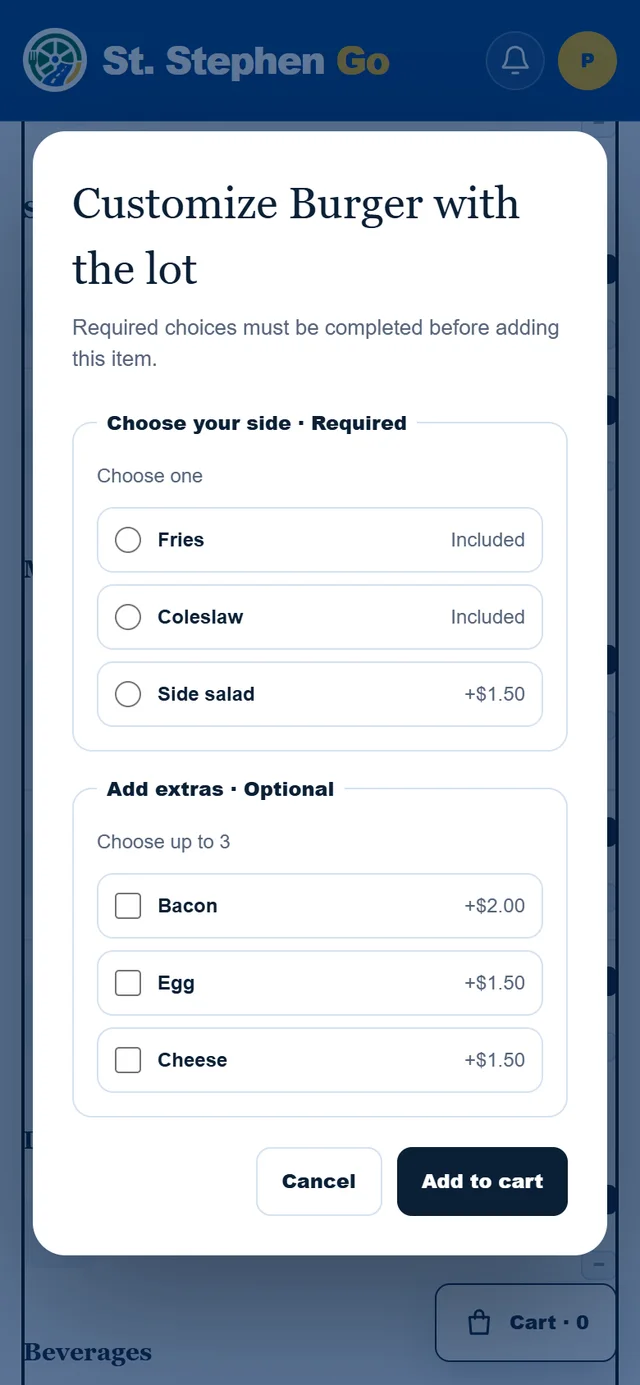
- A dish marked Required has a choice you must make first, such as a size or a side. Tap +, make your choices, then tap Add to cart.
- A choice marked Optional is an extra you can skip. "Choose up to 2" means you can tick up to that many.
3. Open your cart
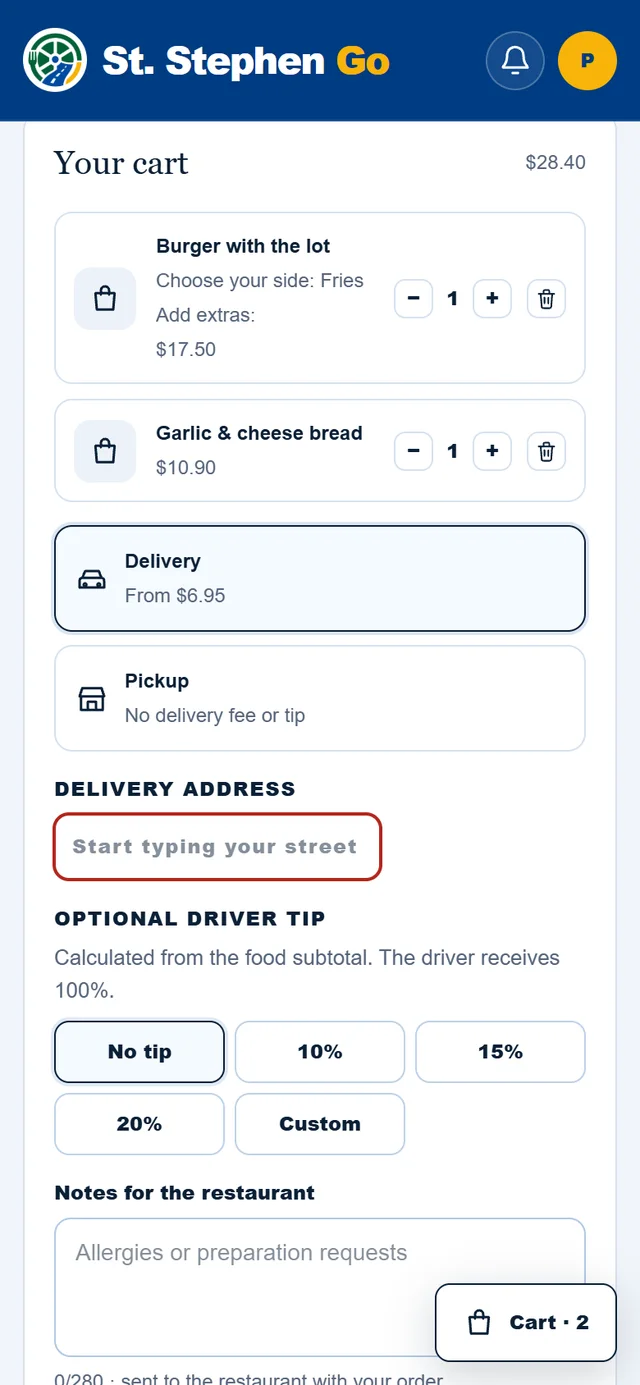
Tap Cart at the bottom of the screen. In the cart you can change quantities or remove a dish.
Good to know
- One restaurant per order. If you add a dish from a second restaurant, the site asks before it empties your cart.
- A closed restaurant can still be browsed. You see "orders are not being taken right now" and the order button stays off until it reopens.
- "Paused · back 6:30 p.m." means the kitchen is too busy for new orders until that time.
- Unavailable dishes are hidden. If a dish has run out, the restaurant takes it off the menu until it is back.
- Photos are for illustration. Your order may look different.
- Allergies: tell the restaurant in Notes for the restaurant at checkout, and for a severe allergy contact the restaurant directly before you order.
Next: Pickup or delivery.
Need help? Call or text Pardeep Bains at (506) 321-7974, or email pardeep@ssgo.ca.
St. Stephen Go is new. No real customer payment has gone through it yet, and card payments run in test mode until Pardeep says otherwise in writing.