
Menu basics: categories and dishes
How your menu is built, and how to add or change a dish.
Your menu on ssgo.ca is built from categories, the dishes in them, and the choices on each dish. A manager or the owner builds and edits it. Use the tablet's Menu page, or a phone or computer at ssgo.ca/restaurant.
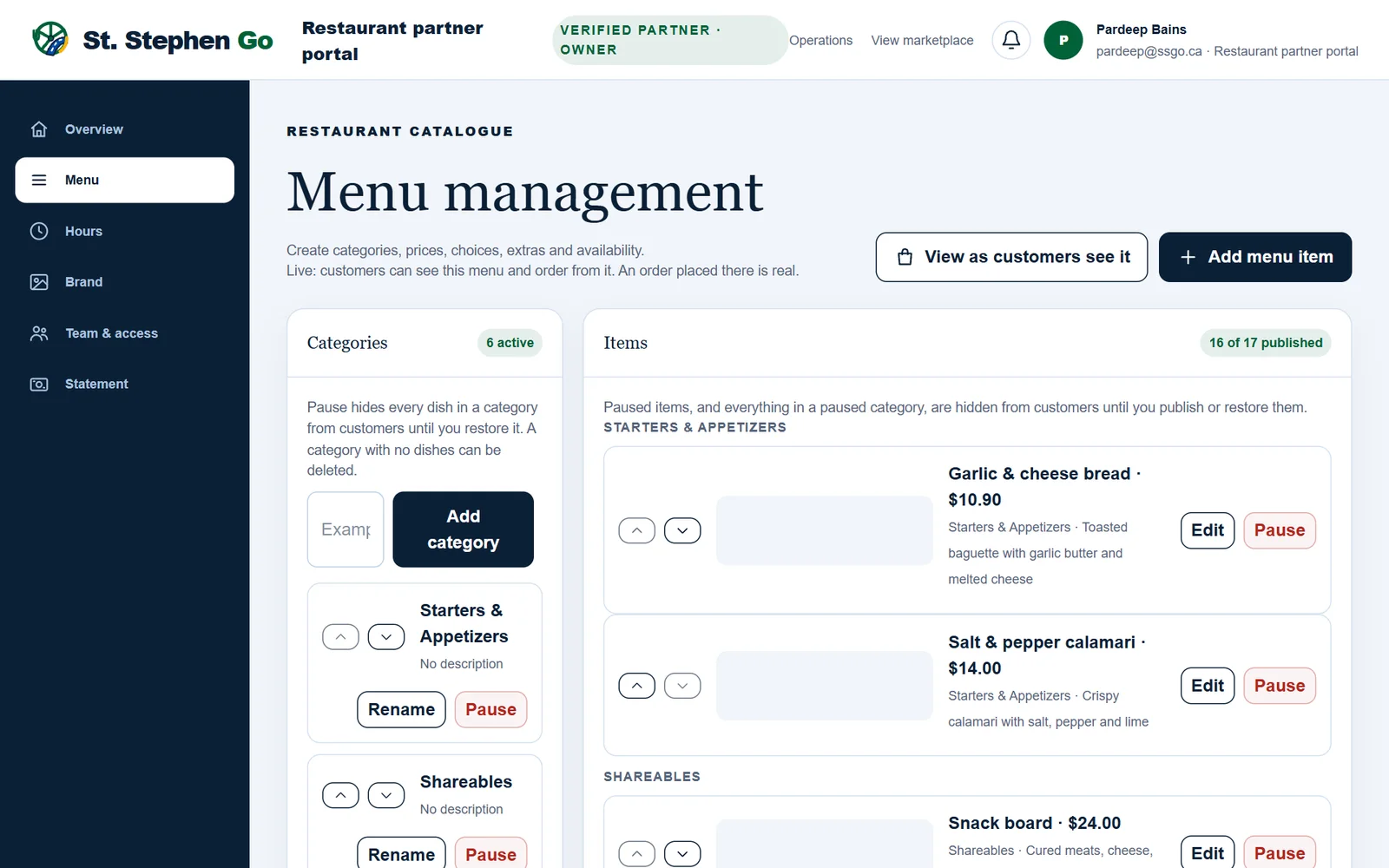
Who can change what
| Staff | Manager or owner | |
|---|---|---|
| Pause a dish that ran out, and publish it again | Yes | Yes |
| Add or change dishes, prices, choices and photos | No | Yes |
| Add, rename, reorder or pause categories | No | Yes |
| Change the order dishes appear in | No | Yes |
| Delete a dish, or a category with no dishes | No | Yes |
Categories
Categories are the headings on your menu, like Breakfast, Sandwiches or Drinks. Every dish sits in one.
- Add one: under Categories, type the name and tap Add category.
- Rename: tap Rename beside it, type the new name and tap Save. Its dishes move with it.
- Reorder: use the up and down arrows. Customers see categories in this order.
- Pause: hides every dish in the category from customers, for example a lunch or seasonal section. Tap Restore to bring them back. While it's paused, its dishes can't be edited.
- Delete: a category with no dishes in it has Delete beside Rename. Move or delete its dishes first.
Add a dish
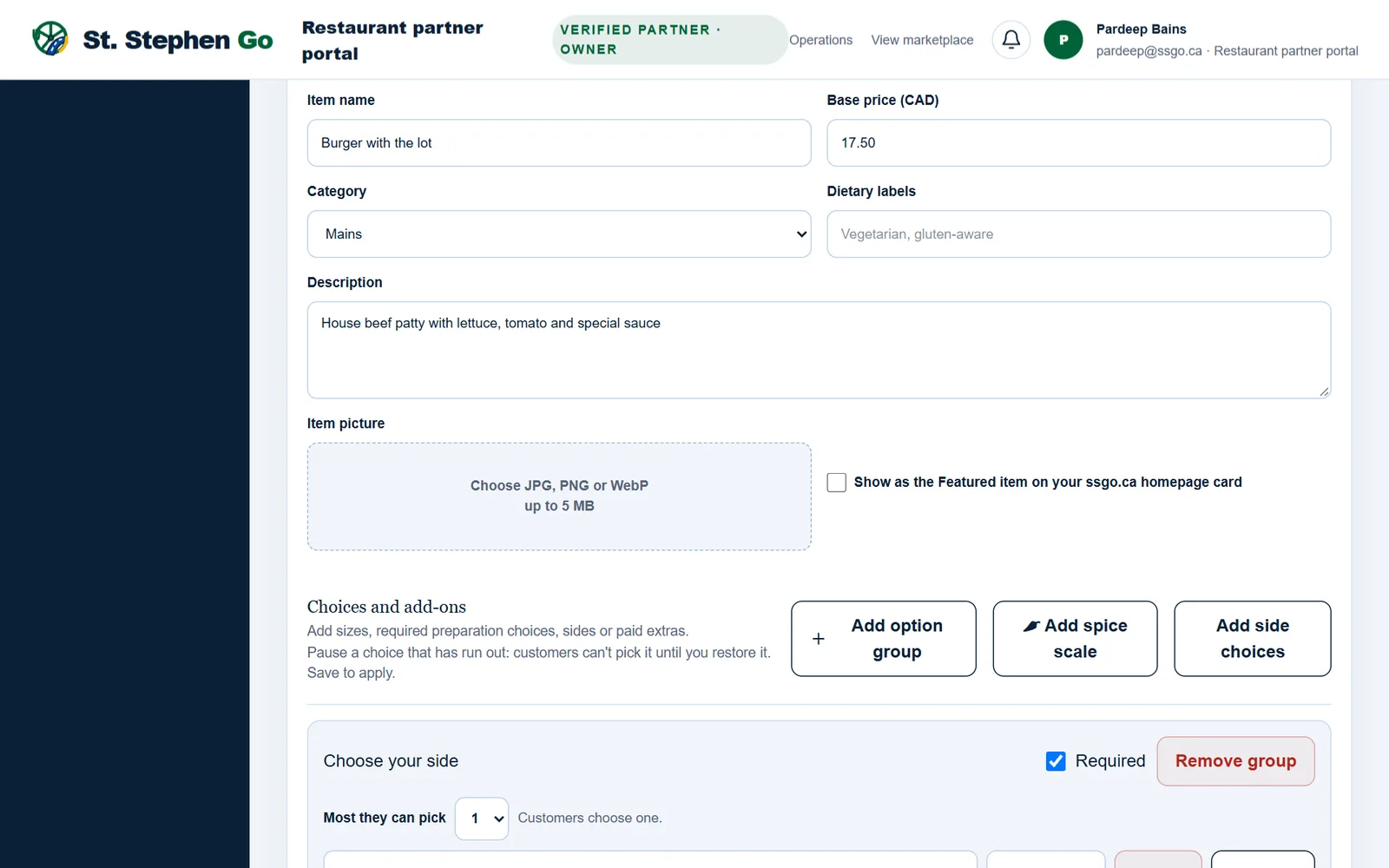
- On Menu, tap Add menu item. The form opens below the list.
- Item name: what customers see, up to 100 characters.
- Base price (CAD): the price without HST, for example 14.50.
- Category: pick one from the list.
- Dietary labels: for example Vegetarian, Gluten-free, separated by commas.
- Description: ingredients, portion size, and anything a customer must know, like allergens. Up to 600 characters.
- Item picture: tap it and choose a photo. JPG, PNG or WebP, up to 5 MB.
- Add choices if the dish has sizes, sides or extras. See Choices and add-ons.
- Tap Save to customer menu. A new dish goes on the menu straight away.
If saving fails, the message at the top says why, for example "Enter a valid menu price."
Change a dish
Tap Edit on the dish, make the change, then tap Save to customer menu. Customers see the change as soon as it saves.
- Move it to another category: pick the new one under Category while editing.
- Change its place: the up and down arrows beside a dish move it within its category.
Prices
- You set your own prices, the same as in-store or higher.
- Prices never include HST. It is added at checkout, for the base price and the extras alike.
- For a whole new menu, send it to Pardeep as a list or photos. He loads it all at once, which is faster than typing it in.
Need help? Call or text Pardeep Bains at (506) 321-7974, or email pardeep@ssgo.ca.
St. Stephen Go is new. No real customer payment has gone through it yet, and card payments run in test mode until Pardeep says otherwise in writing.