
Sold out, featuring, deleting and previewing
The everyday menu jobs: pause a dish, feature one, delete one, and check your menu as customers see it.
Sold out
Anyone on the team can do this, on the tablet:
- Tap Menu.
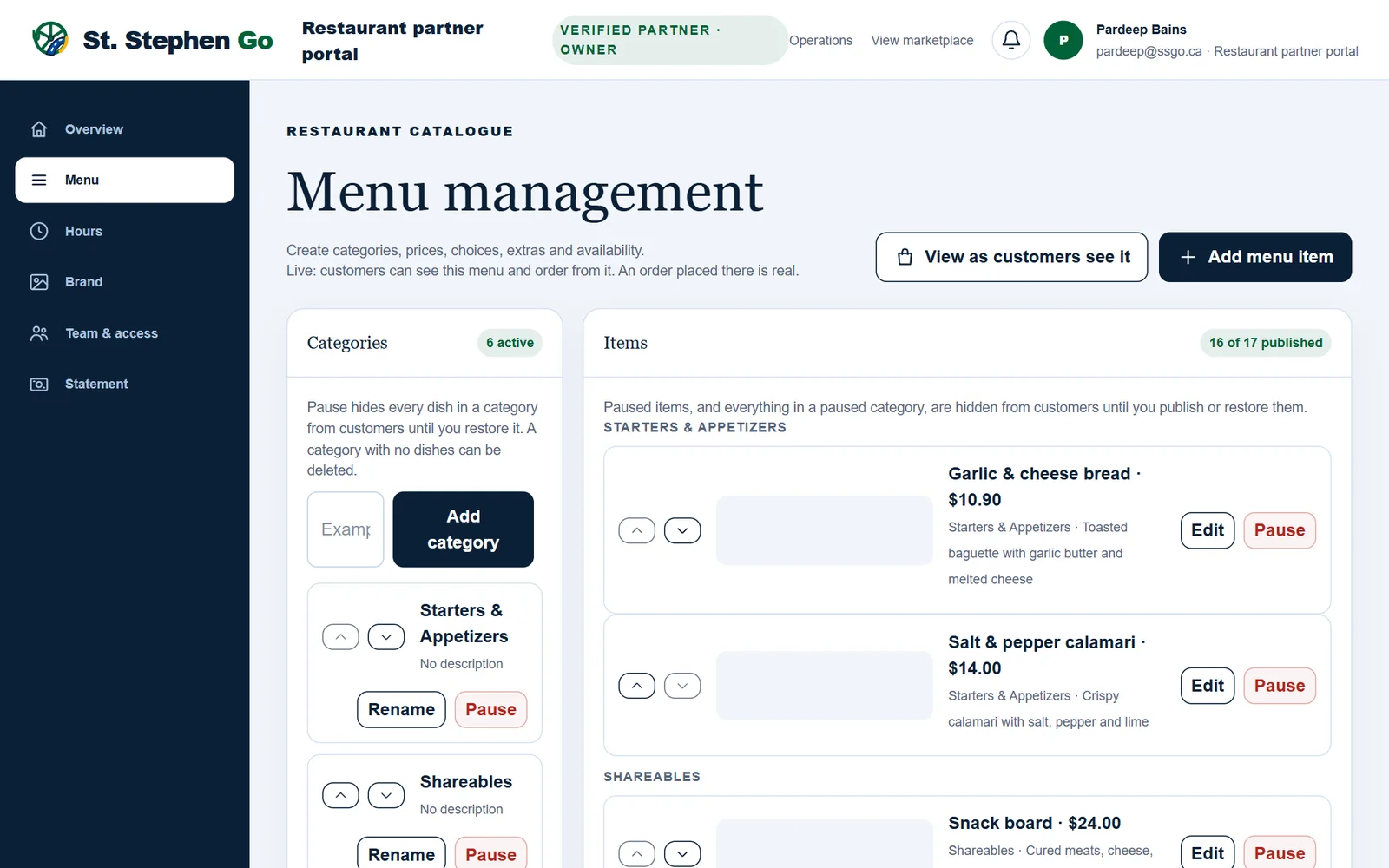
- Find the dish and tap Pause. It comes off the customer menu and can't be ordered.
- When it's back, tap Publish.
The Items heading shows how many dishes are published, for example "88 of 92 published".
A menu that changes daily
Load the whole menu once. Each morning, publish what you are making that day and pause the rest, one tap per dish. To hide a whole section, pause its category.
Feature a dish
While editing a dish, tick Show as the Featured item on your ssgo.ca homepage card. The card names one dish, so tick only one.
Delete a dish
- Tap Edit on the dish.
- Tap Delete at the bottom of the form, then Confirm — delete.
It can't be undone. Orders already placed keep the dish's name and price.
Pause or delete? Pause a dish that will be back. Delete one that's gone for good.
See your menu as customers do
At the top of the Menu page, one button opens your menu the way customers see it. It works best on a phone or computer.
- Preview as a customer, while you're not live yet. You can place a pickup test order there; it is never charged.
- View as customers see it, once you're live. An order placed there is a real order.
Allergens
Put allergens in the Description as well as the dietary labels. Customers read both.
Need help? Call or text Pardeep Bains at (506) 321-7974, or email pardeep@ssgo.ca.
St. Stephen Go is new. No real customer payment has gone through it yet, and card payments run in test mode until Pardeep says otherwise in writing.