
Pausing orders, closing, and opening hours
Three ways to stop orders: a 30-minute pause, closing until you reopen, and your weekly hours.
Too busy: pause for 30 minutes
When you decline an order as Too busy, the tablet offers Pause for 30 min.
- Customers see you as closed until the pause ends, with the time you'll be back.
- Resume now starts orders again early.
- Not now leaves you open.
Any staff member can do this from the order screen.
Closing early, or for the day
A manager or the owner opens Hours and taps Close until I reopen. Customers can't order until someone taps Reopen. Use this for a power cut, a private event, or when the tablet has lost its internet for a while: it works from a phone at ssgo.ca/restaurant.
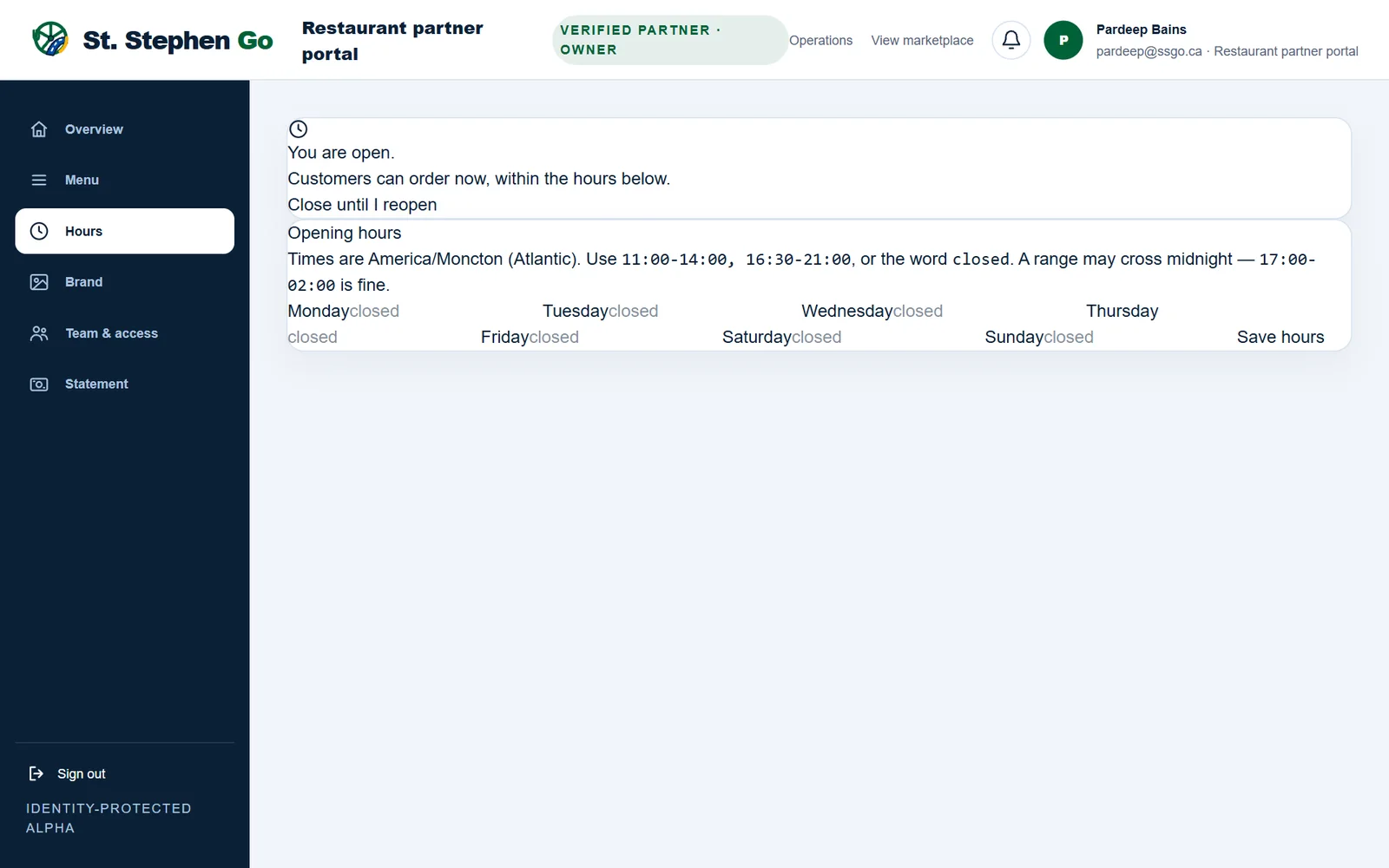
Opening hours
Customers can order only within your hours. A manager or the owner sets them under Hours, in Atlantic time.
- For each day, type the hours like
11:00-14:00, 16:30-21:00, or the wordclosed. - Fill in all seven days.
- Tap Save hours.
A blank day counts as open all day. The page won't save a blank day: enter hours, or the word closed.
Who can do what
| Staff | Manager or owner | |
|---|---|---|
| Pause for 30 minutes after a Too busy decline | Yes | Yes |
| Close until I reopen, and Reopen | No | Yes |
| Change opening hours | No | Yes |
Staff who open Hours see a note that hours and opening are set by a manager or the owner.
Need help? Call or text Pardeep Bains at (506) 321-7974, or email pardeep@ssgo.ca.
St. Stephen Go is new. No real customer payment has gone through it yet, and card payments run in test mode until Pardeep says otherwise in writing.