
Getting started as a partner restaurant
What St. Stephen Go lends you, who does what, and what has to be ready before customers can order.
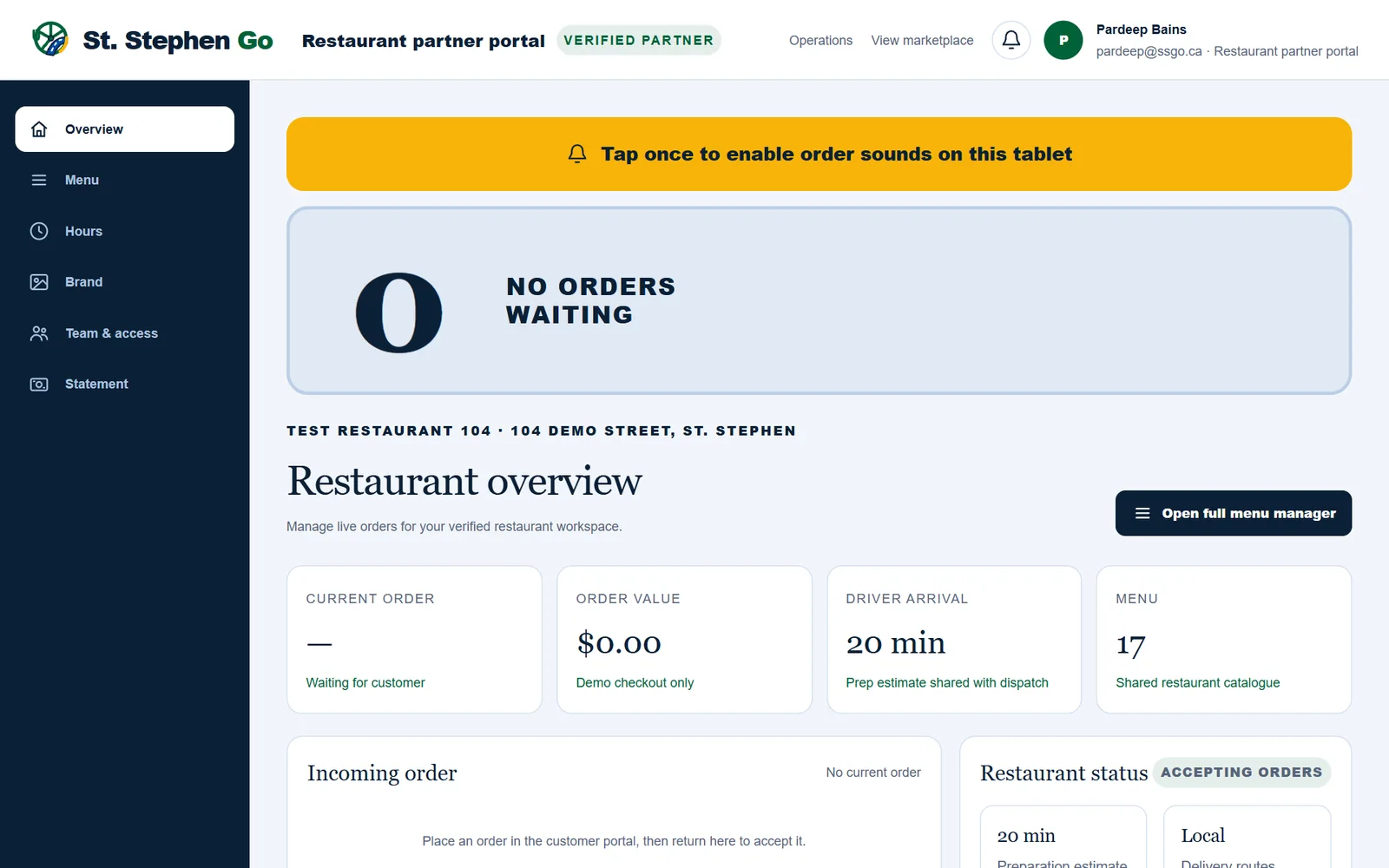
St. Stephen Go brings you online orders from customers in St. Stephen. Staff accept each order on a tablet, cook from a printed ticket, and tap ready when the food is done. St. Stephen Go's own drivers deliver up to 10 km by road.
What you get
- An order tablet, locked to the order screen.
- A kitchen printer and a stand.
- Your restaurant portal at ssgo.ca/restaurant, for your menu, hours, team and statement. It works on a phone or computer as well as the tablet.
The tablet, printer and stand are lent at no charge and stay St. Stephen Go's property. Keep them plugged in.
How you join
- Pardeep sets up your restaurant on St. Stephen Go and loads your menu.
- He sends the owner an invitation link, by email and by text.
- The owner taps the link, taps Sign in to continue, signs in with the invited email address, then taps Accept invitation and Open your restaurant.
- The owner invites a manager and any staff. See Team & access.
If Pardeep has already set up your restaurant, use the invitation link. Don't sign up again from the For restaurants page, which would create a second, empty restaurant.
Three roles
| Role | What they do |
|---|---|
| Owner | Everything, including adding and removing people and reading the Statement. |
| Manager | Menu, prices, hours, closing and reopening, brand, and the orders. |
| Staff | The orders, and pausing a dish that ran out. |
Before customers can order
Your restaurant starts hidden from customers. You and your team can work on it, but nobody can order until Pardeep presses Go live. Before that, these need to be in place:
- an owner who has accepted the invitation,
- at least one dish on the menu, with prices that match your own menu (HST is added at checkout, so it does not belong in the price),
- opening hours for all seven days,
- your delivery address, which Pardeep sets, and pickup or delivery switched on,
- your public name, category and a cover photo on the Brand page,
- a test order that printed and was accepted on the tablet.
While you are hidden, the Preview as a customer button at the top of the Menu page shows your menu the way customers will see it. You can place a pickup test order there; it is never charged and prints as a TEST ORDER.
Read next
Need help? Call or text Pardeep Bains at (506) 321-7974, or email pardeep@ssgo.ca.
St. Stephen Go is new. No real customer payment has gone through it yet, and card payments run in test mode until Pardeep says otherwise in writing.