
The order tablet: accept, decline and mark ready
What to do when the tablet chimes, step by step.
Every order needs a yes or no within 15 minutes. After that it closes as "Not accepted in time" and the customer isn't charged.
When an order comes in
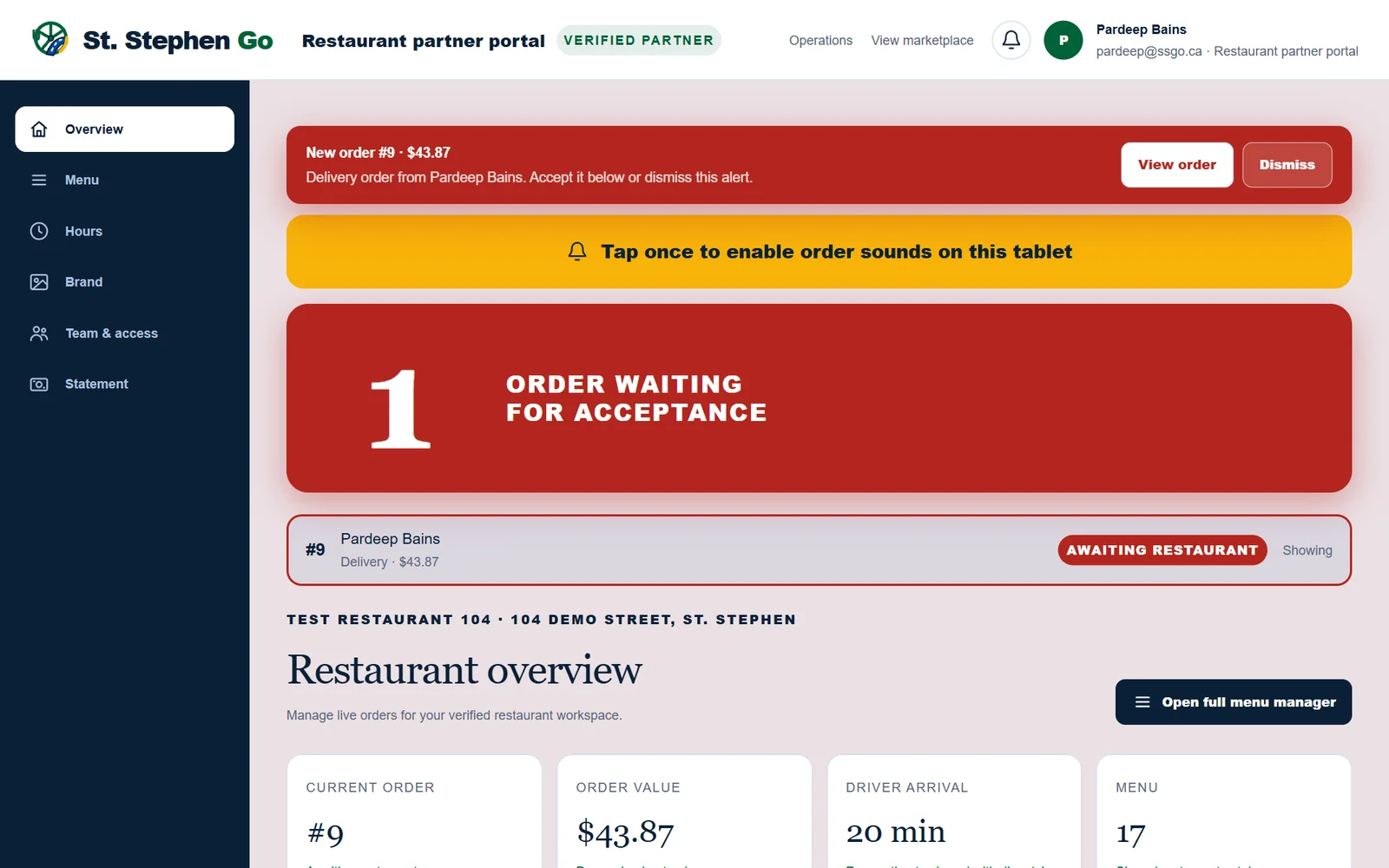
The tablet chimes, the screen turns on, and a bar across the top says New order with its number and total. The chime repeats every 20 seconds until someone accepts or declines. Dismiss stops the sound, but the order still waits.
If you see a yellow bar that says Tap once to enable order sounds on this tablet, tap it. The tablet needs that one tap before it can play the chime.
To accept
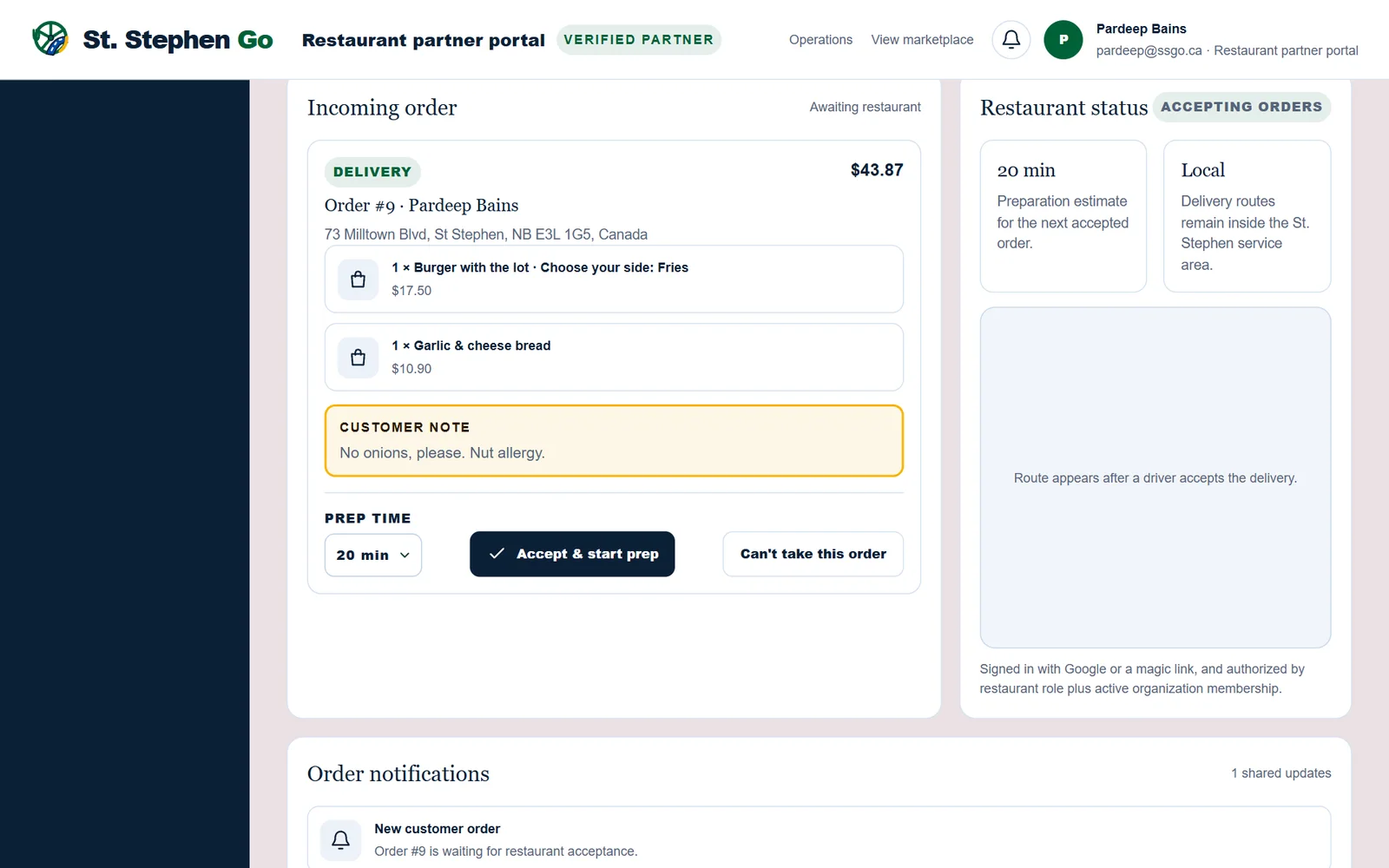
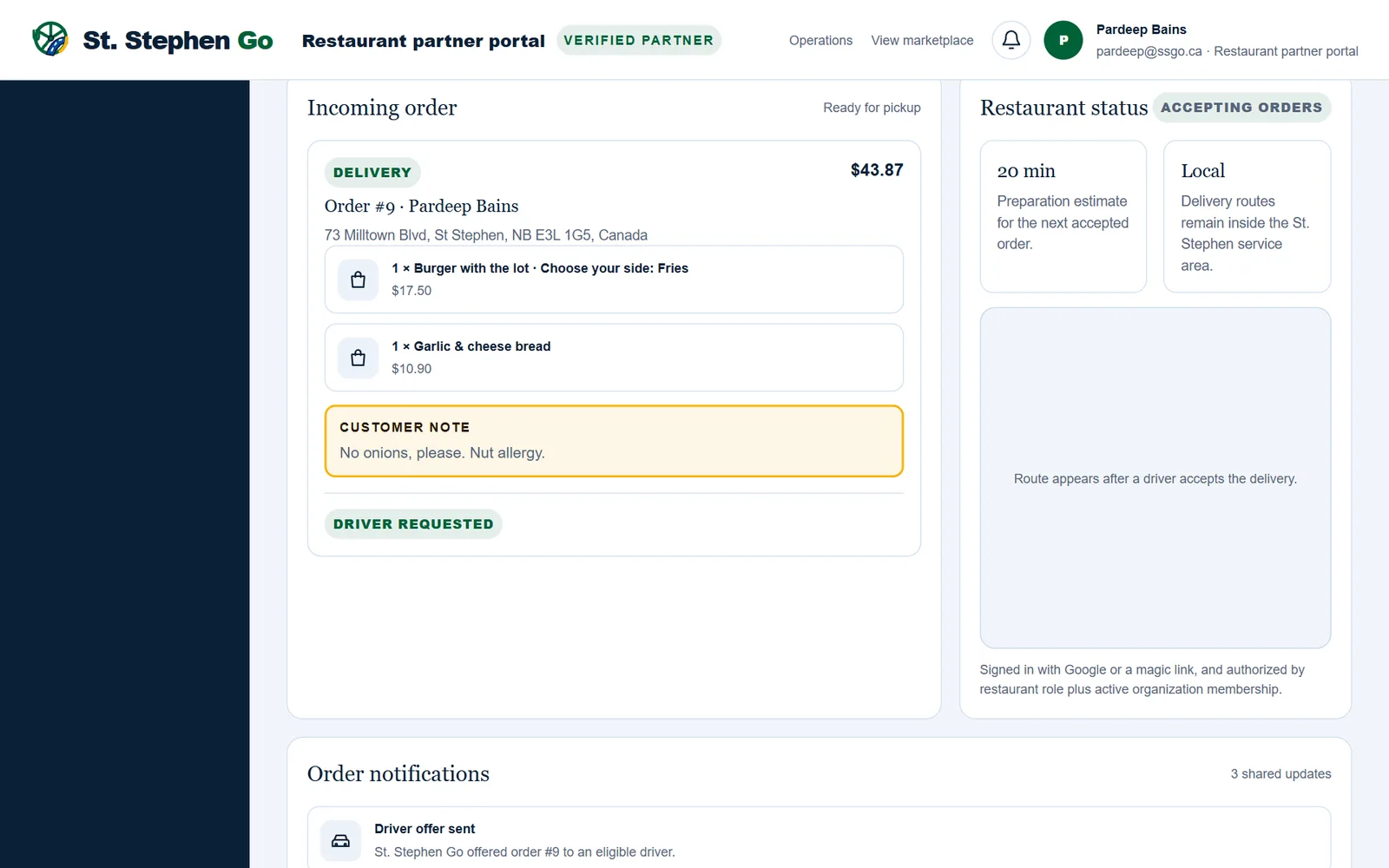
- Read the items and any Customer note. Allergies are written there.
- Pick a Prep time: 10, 15, 20, 25, 30 or 40 minutes.
- Tap Accept pickup order or Accept & start prep.
The customer's card is charged now, and the kitchen ticket prints. Cook from the kitchen ticket.
To decline
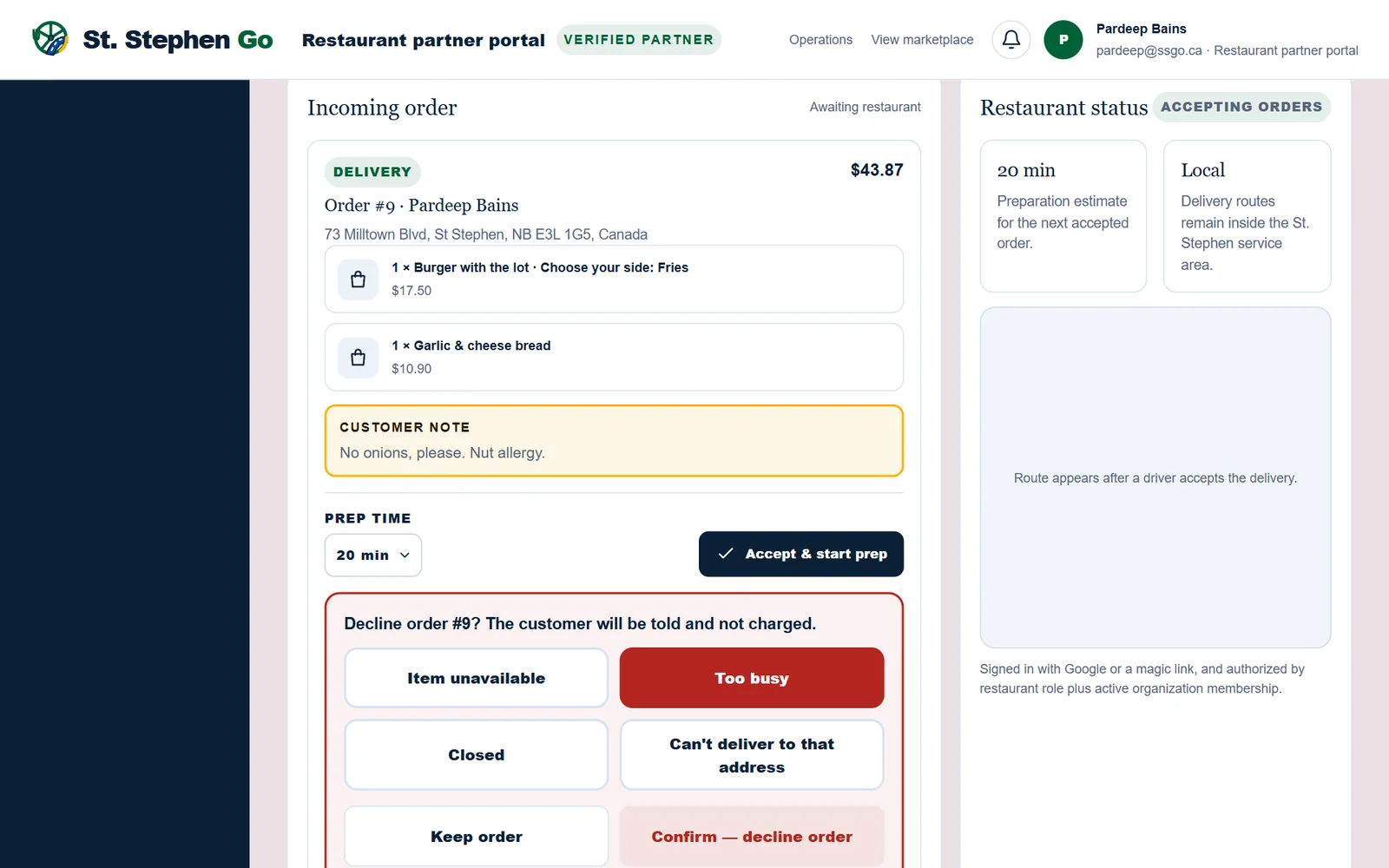
- Tap Can't take this order.
- Pick a reason: Item unavailable, Too busy, Closed or Can't deliver to that address.
- Tap Confirm — decline order. Keep order takes you back.
The customer is told the reason and is not charged.
Mark it ready
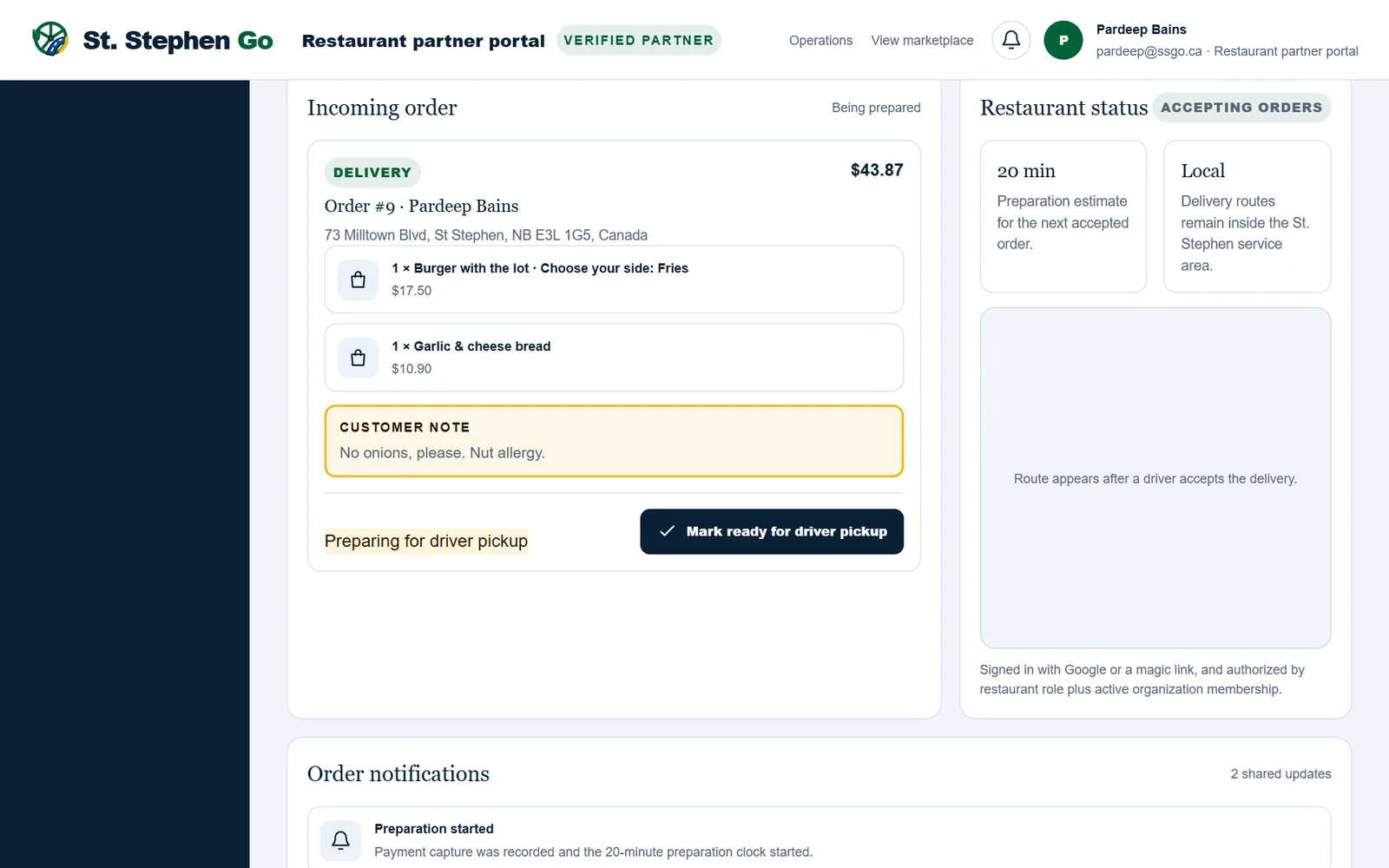
When the food is done, tap Mark ready for pickup or Mark ready for driver pickup.
- For a delivery, this is what calls a driver. Don't tap it early, and don't forget it.
- An accepted order that is not marked ready within 45 minutes after its prep time is cancelled and the customer refunded.
More than one order
Open orders are listed at the top, oldest first. Tap one to show it.
What you can't do on the tablet
There is no cancel button after you accept an order. If you accepted something you can't make, call Pardeep straight away at (506) 321-7974.
Need help? Call or text Pardeep Bains at (506) 321-7974, or email pardeep@ssgo.ca.
St. Stephen Go is new. No real customer payment has gone through it yet, and card payments run in test mode until Pardeep says otherwise in writing.